WordPress runs 39.5% of all websites, according to W3Techs data from October 2026. If yours is one of them, there are two built-in places to change how your theme looks, and the theme decides which one you get.
Classic themes use Appearance → Customize. Block themes, such as Twenty Twenty-Five, use Appearance → Editor, also called the Site Editor. Page builders, custom CSS and child themes can extend either one.
Before you pick a tool, work out how far the change will reach. Editing a paragraph on your homepage changes that page. Editing the header in the Site Editor changes it on every page that uses that header, and a template edit can restyle a whole group of pages at once. Pick an edit below to see which pages it changes.
This guide covers both editors and shows how to test a change before visitors see it.
At a glance
- Classic theme: Appearance → Customize
- Block theme: Appearance → Editor (the Site Editor)
- One small style fix: Additional CSS
- Editing theme files: a child theme, set up before you customize
- Back up first and test on a staging copy
Prepare Your Site Before You Customize
Customizer and Site Editor changes are saved in the database, and child theme edits are saved as files. Back up both, and confirm you can restore the backup before you start.
Test on a staging copy
If your host offers staging, copy the site there and make sure the copy isn't publicly accessible. Make and test your changes on the copy first. Shared templates and site-wide styles reach more pages than you might expect, and staging is where you find that out.
Note your current settings and any custom code before you change them, so you have something to compare against or restore. Then plan how the finished changes will reach the live site. The staging copy goes stale while you work, and pushing it over the live site can overwrite newer content or orders.
Check whether your theme is classic or block
Go to Appearance → Themes to see the name of the active theme, and look up its documentation. You can also find your active theme in other ways.
The Appearance menu gives a quick clue. An Editor item usually means a block theme, and a Customize item usually means a classic one. Treat the menu as a hint, because user permissions, site configuration and themes that mix classic and block features all change what appears there.
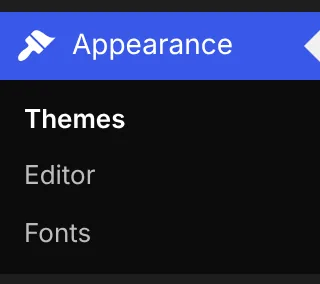
Block theme
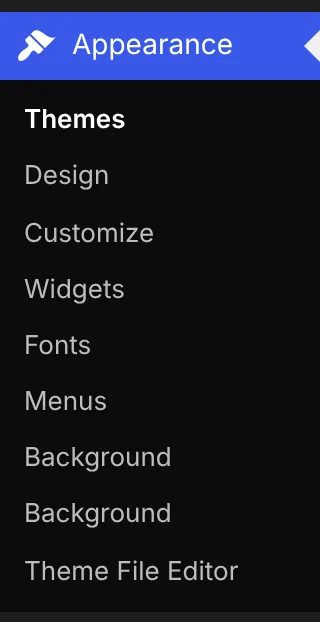
Classic theme
Compare WordPress Theme Customization Methods
Each method works at a different layer of the site and saves changes in a different place. Where a change is saved decides whether it survives an update or a theme switch, and what your backup needs to include.
| Method | Works with | Skill level | Best for | Where changes are saved |
|---|---|---|---|---|
| Customizer | Classic themes | Beginner | Logo, colors, menus, widgets and other options the theme provides | Database, per theme |
| Site Editor | Block themes | Beginner to intermediate | Templates, headers, footers and site-wide styles | Database, per theme |
| Page builder | Themes the builder supports | Beginner | Landing pages and custom layouts | Usually the database; the layout needs the builder to stay active |
| Custom CSS | Classic or block themes | Intermediate | Small, targeted style fixes | Database (Additional CSS, per theme) or a child theme stylesheet |
| Child theme | A compatible parent theme | Advanced | Template overrides and other file-level changes | Child theme files |
Pick the method with the smallest reach that gets the job done:
Answer both questions to see where to start.
Use a page builder that supports your theme
Check its documentation and how much extra CSS and JavaScript it loads. The layout only works while the builder stays active.
Use a child theme
Create and activate it before you customize anything, because Customizer and Site Editor settings are saved per theme.
Check your theme type first
Go to Appearance → Themes, note the active theme and look it up in its documentation. An Editor item under Appearance usually means a block theme, and Customize usually means a classic one.
Use the Site Editor
Styles covers colors and fonts, and Navigation edits menus. The site title and logo usually sit in the header template part, under Patterns.
Use the Customizer
Site Identity sets the title, tagline, logo and site icon. Colors and Menus cover the rest, if your theme provides them.
Edit a template or template part
A template edit changes every page that uses the template, and a template part such as the header changes every template that includes it. Read the Review changes list before you save.
Start in the Customizer
Use the header and layout options your theme provides. If the option you need isn't there, the change needs a child theme template override.
Add Additional CSS in Styles
Open Styles, click the ⋮ menu and choose Additional CSS. Check other pages afterwards, because a selector can match more than you meant.
Use the Additional CSS panel
It's in the Customizer's panel list. Keep a copy of your rules, since they're saved per theme.
- For a header option your classic theme provides, use the Customizer.
- For a shared template or the site-wide design in a block theme, use the Site Editor.
- For a landing page, consider a page builder that supports your theme. Check its documentation and how much extra CSS and JavaScript it loads.
- For one targeted visual fix, use custom CSS.
- When the change means editing theme code, use a child theme.
If you're researching competitors' site designs for ideas, note which of their features your theme can support before you settle on a method.
Check the trade-offs first
Many Customizer settings, including the logo, header image and Additional CSS, are saved per theme, and so are Site Editor templates and global styles. When you switch themes, including when you activate a child theme, those changes stay with the old theme and the new one starts from its defaults. Some themes store their own options where a child theme can still read them, but assume yours doesn't unless its documentation says so. Menu locations and widget areas can also move after a switch, because each theme defines its own.
Page builder layouts need the builder to stay active. Deactivate it and the layout usually goes too. Divi 4, for example, leaves shortcodes in your content, and Elementor leaves the content without its styling.
Customize a Classic WordPress Theme With the Customizer
Open Appearance → Customize. The settings panels sit on the left, with a live preview of your site on the right. Click a panel to see its controls and use the back arrow to return to the list.
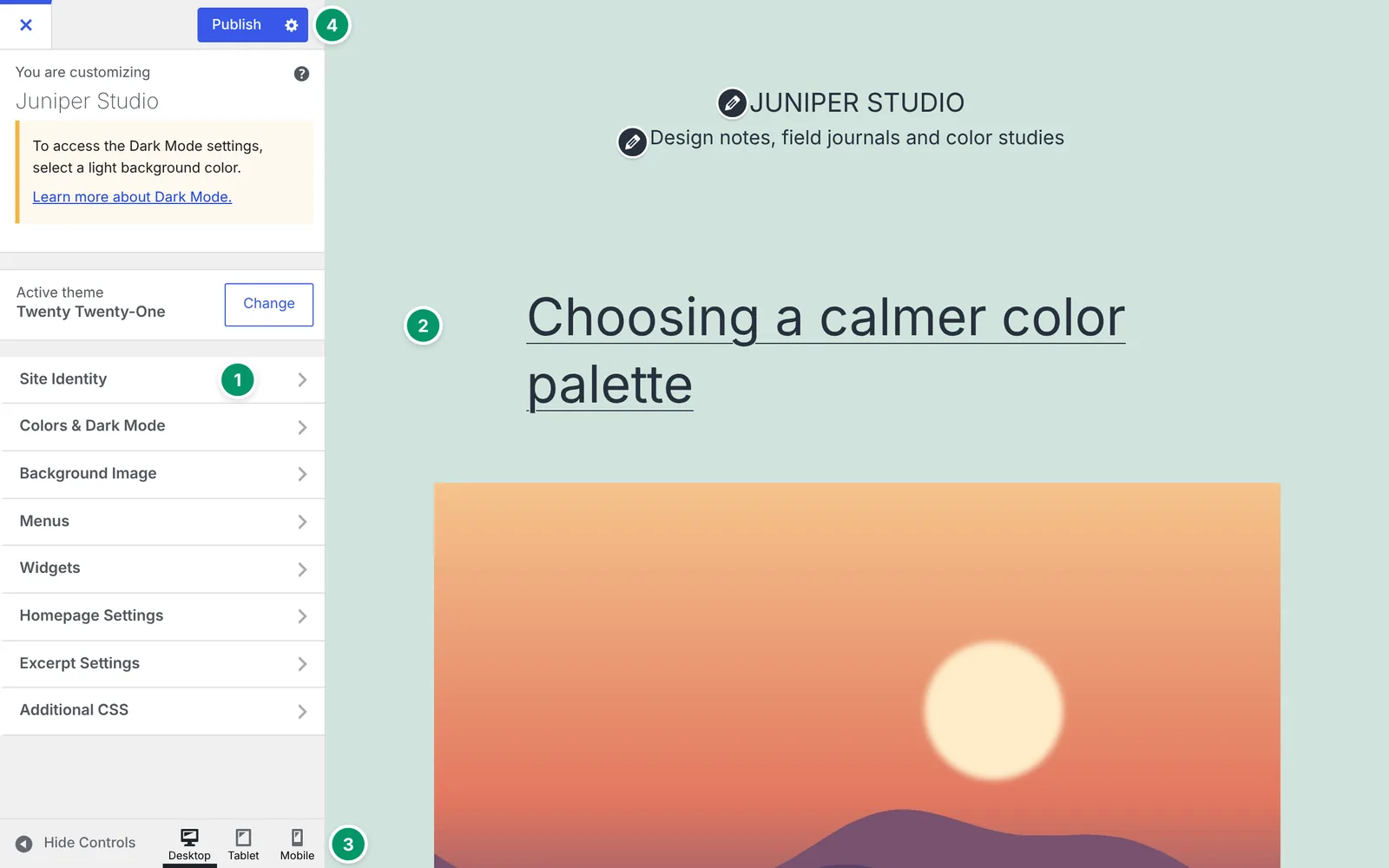
Your theme decides which panels appear, and plugins can add more, so the list differs from site to site. If a tutorial mentions a control you can't find, check your theme's documentation, since the theme may not include it. The WordPress documentation also has general theme guidance.
Change site identity, colors, menus and widgets
These settings usually live in separate panels, though the names vary by theme:
- Site Identity sets the site title, tagline, logo and site icon. The logo option appears only if your theme supports one.
- Colors holds the color options your theme provides. Check that text stays readable against its background.
- Menus lets you edit navigation links and assign a menu to a location your theme supports.
- Widgets controls the sidebar and footer areas, if your theme has them.
- Additional CSS takes small, targeted rules. Keep a copy of anything you put there, since it's saved per theme.
Preview, then publish or save a draft
Before you publish, open each page where a changed setting shows up. A color that works on the homepage can clash with a widget area on another page. Use the device icons at the bottom of the panel to check tablet and mobile widths, and reopen any panel that needs another pass.
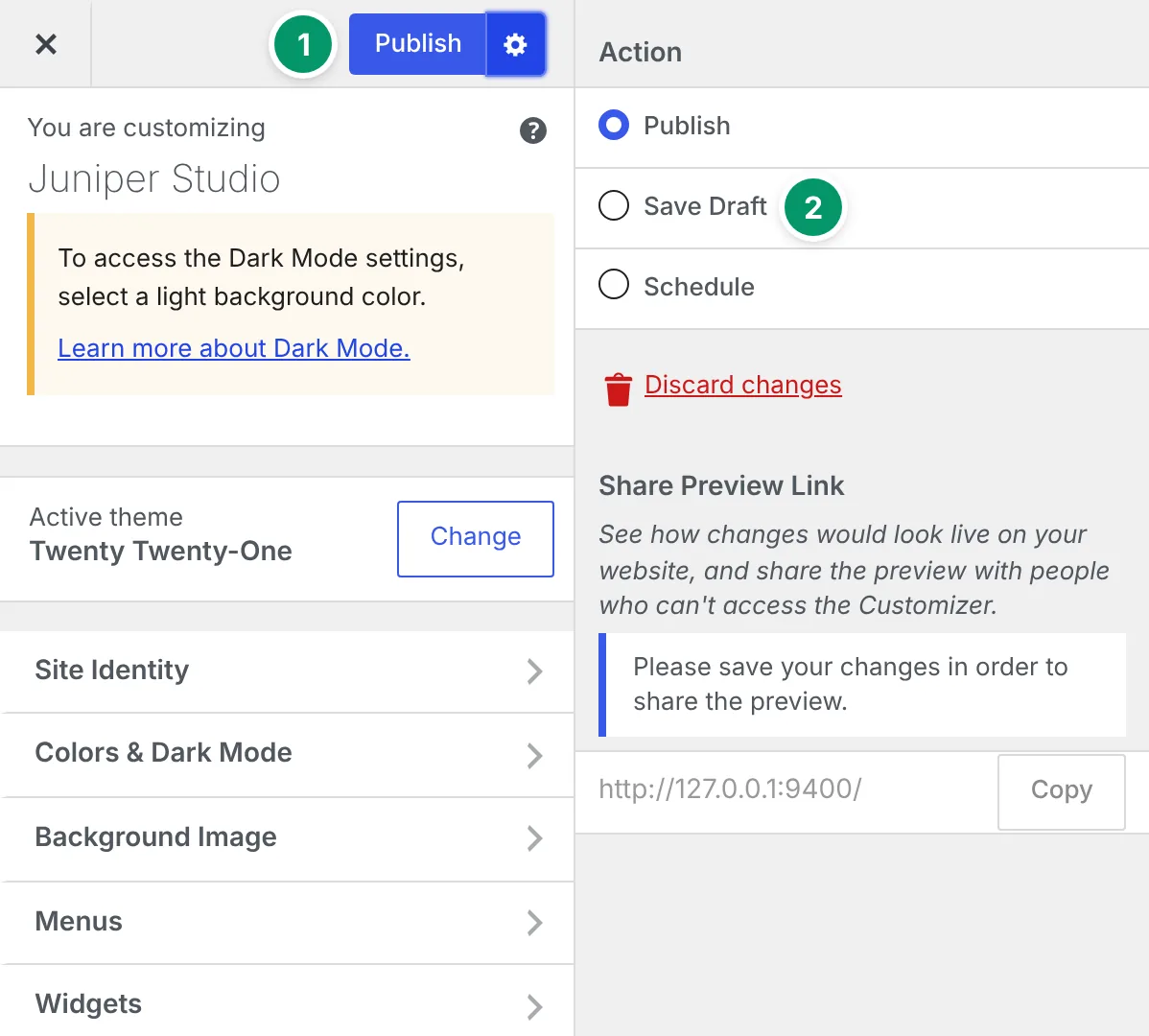
Click Publish when you're ready. If you're not, click the gear icon next to Publish and choose Save Draft, or Schedule to publish at a set time. Once a draft is saved you can share a preview link, which is useful when a client needs to approve the change.
Customize a Block Theme With the WordPress Site Editor
In a block theme, the whole site is built from blocks, including the header and footer, and you edit all of it in Appearance → Editor.
Open the Site Editor
Appearance → Editor appears when a block theme is active and your account has permission to edit it. In WordPress 7.1 the sidebar lists Identity, Styles, Pages, Navigation, Patterns and Templates, and labels move around between versions. The header and footer template parts live under Patterns.
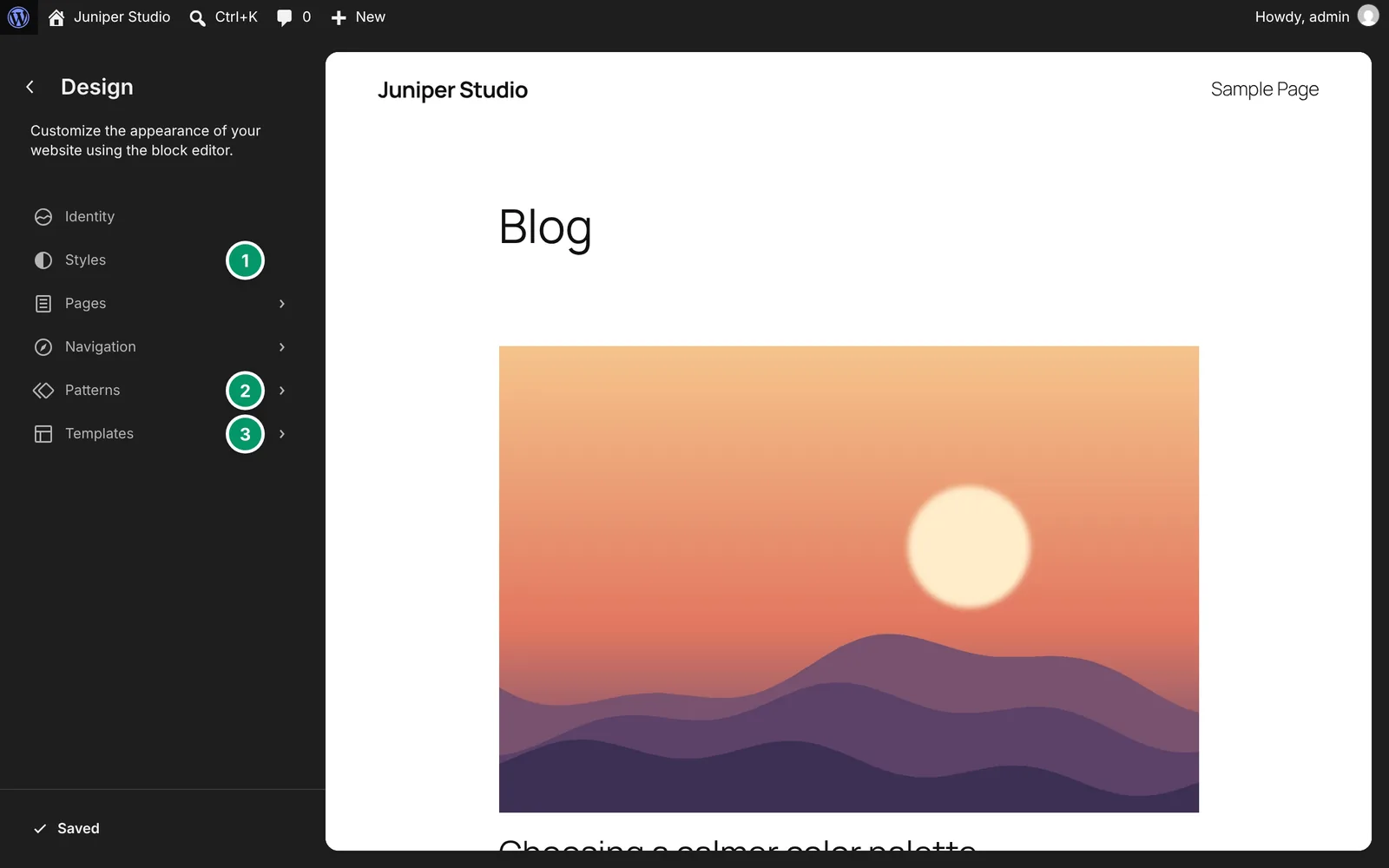
Click a template or an area of the site to open it on the editing canvas. If a nested block in the header is hard to click, open List View and select it from the tree.
Edit styles, templates and template parts
Each kind of edit reaches a different number of pages. A paragraph edit inside a page stays on that page. A template edit reaches every page that uses the template. Move the title block in the single-post template and it moves on every post, though each post's text stays separately editable. Template parts work the same way: edit the header or footer and it changes in every template that includes it.
Styles sets typography, colors and other design options for the whole site, within what your theme supports, so you don't have to adjust each page separately. For rules the controls can't handle, open Styles, click the ⋮ menu and choose Additional CSS (WordPress 6.2 and later).
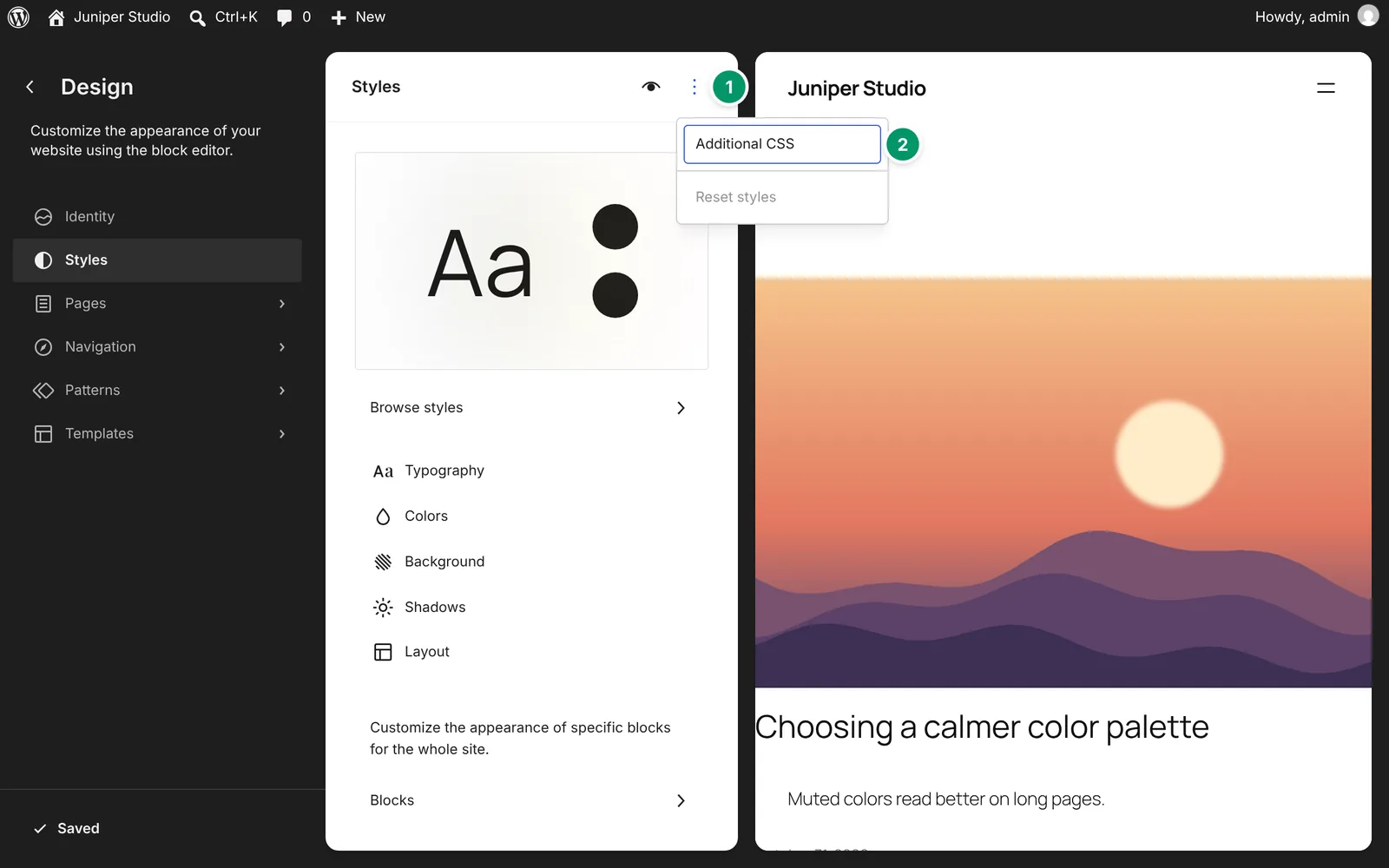
Review and save your changes
When you have unsaved edits, the button at the bottom of the sidebar shows how many (in WordPress 7.1 it reads "Review 2 changes…"). Click it and WordPress lists everything you changed, such as templates, template parts and site styles, each with a checkbox. Read the list before confirming. An edit that felt local may have changed a header used across the site, and you can untick anything you didn't mean to save. Then open an affected page and check the change reached only the pages you intended.
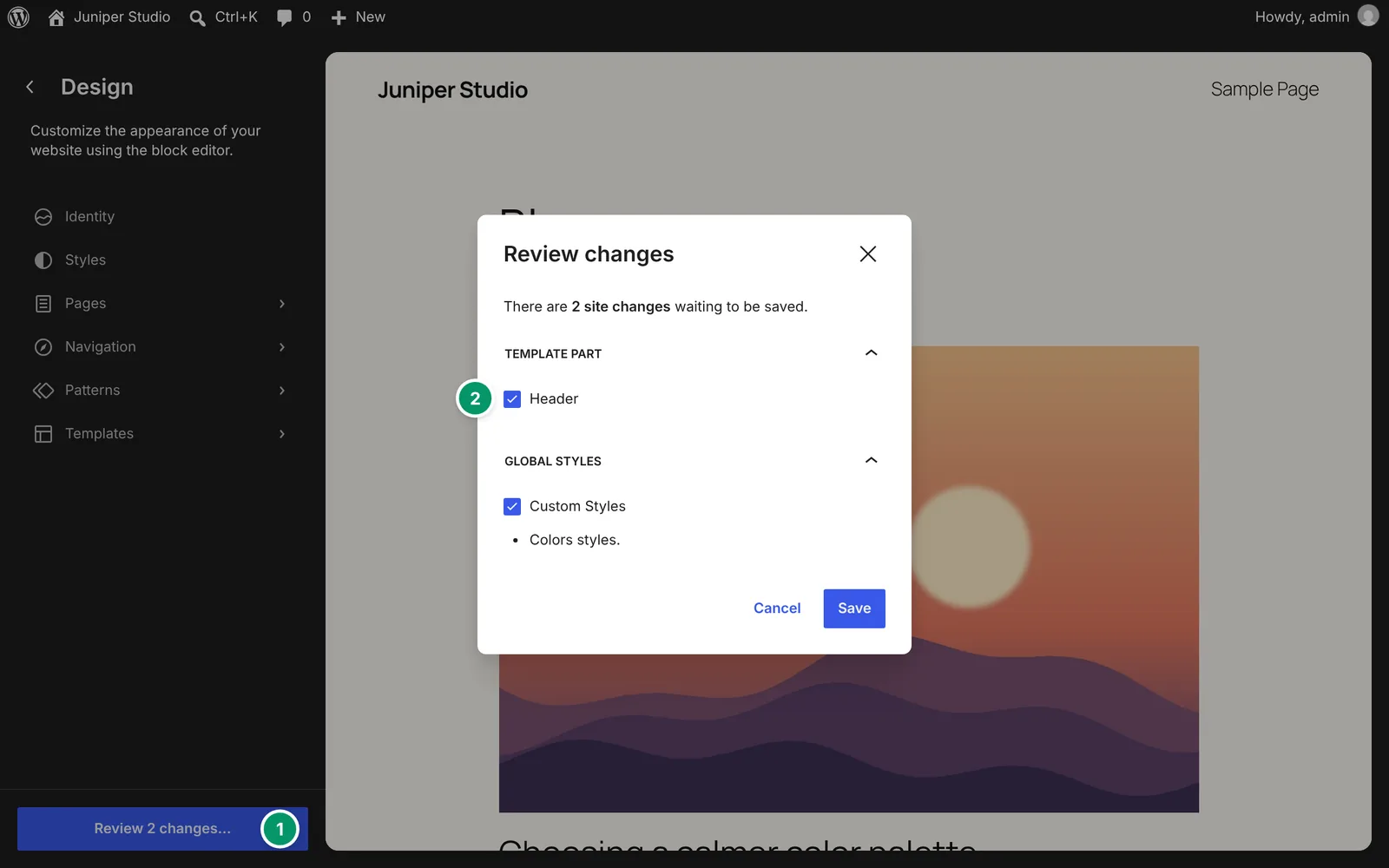
Revisions and reset options exist for some items, but what's available depends on the item and your WordPress version, so check before you rely on them.
Make, Preview and Publish Common Design Changes
Readable text and working navigation matter as much as the new look, so test both before you publish.
Plan the changes
List each change and the pages it affects, for example a new homepage hero or a revised footer. Check your theme and plugin documentation for anything that could conflict, then make the changes on your staging copy.
Update your logo, typography, colors and layout
Use whichever editor your theme supports, then work through these:
- Upload a logo sized for the space it fills, and add alt text if WordPress asks for it.
- Check the new palette's contrast on buttons, navigation links and body text as well as in the homepage hero.
- Choose font sizes and line spacing that keep body text and headings easy to read.
- Rearrange the homepage hero, content blocks and call to action.
- Use images sized for where they appear, and compress them so pages don't carry extra weight.
- If you used a page builder, remove elements and features you don't use, along with any plugins the design no longer needs.
Add custom CSS somewhere you can easily undo it, such as Additional CSS, and check other pages afterwards, because a selector can match more than you meant. For example, .wp-block-button__link { border-radius: 4px; } rounds every block button on the site. Putting .home in front, as in .home .wp-block-button__link, limits the rule to the homepage.
Preview on mobile and desktop, then publish
A layout can look right in a mobile preview while a keyboard user still can't reach the menu, so test both:
Check both screen sizes
Look at mobile and desktop views, especially long headings, images and the responsive menu.
Test with the keyboard
Press Tab to move through menus and calls to action, and confirm you can see which element has focus.
Click every link
Click through the navigation links and menus to check they go where they should.
Publish and check the live site
Publish or deploy the approved changes, then visit the live site. Test the main links and forms without submitting real customer data.
WordPress Theme Customization FAQs
Do I need coding skills to customize a WordPress theme?
You can make many changes without them. The Customizer in classic themes and the Site Editor in block themes let you adjust colors, fonts, menus and layout without code, within whatever your theme supports.
Code helps when you want something the controls don't offer. A few lines of Additional CSS cover small visual fixes, and a child theme covers template changes. When you get to that point, the WordPress documentation is a good reference.
Why can't I find the Customizer or Site Editor?
Start with your theme type. Block themes hide Appearance → Customize, although going to /wp-admin/customize.php often still opens it. Classic themes generally don't include the Site Editor.
If the theme type doesn't explain it, ask a site administrator to check your user role, since editing themes needs administrator permissions by default. Site settings or other customizations can also hide menu items. A missing menu item doesn't mean the site is broken, and it doesn't prove which theme type you have.
Should I use a child theme for custom code changes?
Use one when you need file-level changes, such as overriding a template in a classic theme. For a small visual tweak, Additional CSS is simpler and leaves you no extra theme files to maintain.
If you go ahead, create and activate the child theme before you customize anything in the Customizer or Site Editor. Most of those settings are saved per theme, so work done under the parent usually won't carry over. Check the parent theme's documentation first and keep the parent installed. Test the child theme on staging before using it live, and review your overridden templates after each parent update in case they need changes.
Will theme updates overwrite my customizations?
That depends on where you made them. An update replaces the parent theme's files, so edits made directly to those files are lost. Customizer and Site Editor changes are stored in the database and survive updates, though an updated theme may display a saved setting differently. Child theme files are separate, and a parent update doesn't replace them.
In block themes, a template you've customized in the Site Editor overrides the theme's own version. If an update improves that template, you won't see the improvement. To get it, use the Reset option on the template, which discards your edits to it.
Before updating, keep a restorable backup and a copy of your custom CSS and code. Test the update on staging if you can, and afterwards check your main layouts, navigation and features on the live site.
Why aren't my published theme changes showing up?
Work through these in order:
- Confirm you saved or published the change, you're viewing the right page on the right site, and the theme you edited is the active one. If editing controls are missing, check your user permissions.
- Refresh the page, then clear your browser cache, your caching plugin and any host or CDN cache. Your host's documentation explains how to purge its cache.
- If the change still doesn't appear, right-click the element, choose Inspect, and look for your rule crossed out in the styles panel. That means another style is overriding it, and clearing caches won't fix it.
- To rule out a plugin conflict, turn off suspected plugins one at a time on staging and recheck the element after each one.
Next Steps for Customizing Your WordPress Theme
If a site you admire gave you the idea, the free ThemeSniffer Chrome extension can identify the theme and plugins it runs. Use the result as a lead for your own research. Detection can miss things, and the layout you like may also depend on plugins and custom code. Check your own theme's documentation before you copy a technique, since it may need a different setup on your site.
Start with one change tied to a clear goal, such as making the homepage call to action easier to spot. Preview it at different screen sizes, check the link goes where it should, and confirm it works before you add the next change.
Keep a short note of each setting you changed, where you changed it, any custom code you added, and what the change was meant to help visitors do. When the next theme update arrives, that note tells you what to check.
About the author
Ruslan Saifullin is a developer with more than 10 years of WordPress experience across 20+ projects, and the author of ThemeSniffer's detection engine - the theme, plugin, hosting and CDN checks behind the free Chrome extension and the tools on this site. Corrections to any claim above are welcome; you can reach him on X.
See What Theme Any Site Uses
ThemeSniffer is a free Chrome extension that detects the WordPress theme and plugins on the page you're viewing, so you can see what a site you like is built on before you start customizing your own.
Add to Chrome - Free